
Instagram SEO: How to Get Found in Search (Not Just the Feed)
Instagram has its own search engine, and since July 2025 Google indexes a slice of public posts too. Here's where your keywords actually matter.
 Insta Saver TeamJuly 11, 20266 min read
The exact pixels for every Instagram format in 2026, and the safe zones where the app's own UI covers your content — so nothing important gets hidden behind a button.
 Insta Saver TeamJuly 11, 20266 min read
You export a design at what feels like the right size, upload it, and Instagram crops the headline off the top or hides your call-to-action behind the reply bar. It's one of the most avoidable mistakes in content creation, and one of the most common — because the specs live in a dozen scattered places and the app never tells you where its own buttons are about to land.
This is the reference version: every dimension that matters in 2026 — stories, feed posts, Reels, carousels, profile photo — plus exactly where Instagram's interface covers your content, so you can design around it instead of finding out after you've posted.
Stories and Reels both use a full-screen 9:16 canvas — export at 1080×1920px. Instagram will accept a range of vertical ratios and letterbox or crop the rest, but 1080×1920 is the one that fills the screen edge-to-edge with nothing lost.
The canvas size is the easy part. What actually causes lost content is the UI overlay — the profile row, close button, reply field, and sticker tray that Instagram draws on top of your image or video. Keep important text and faces out of those bands.
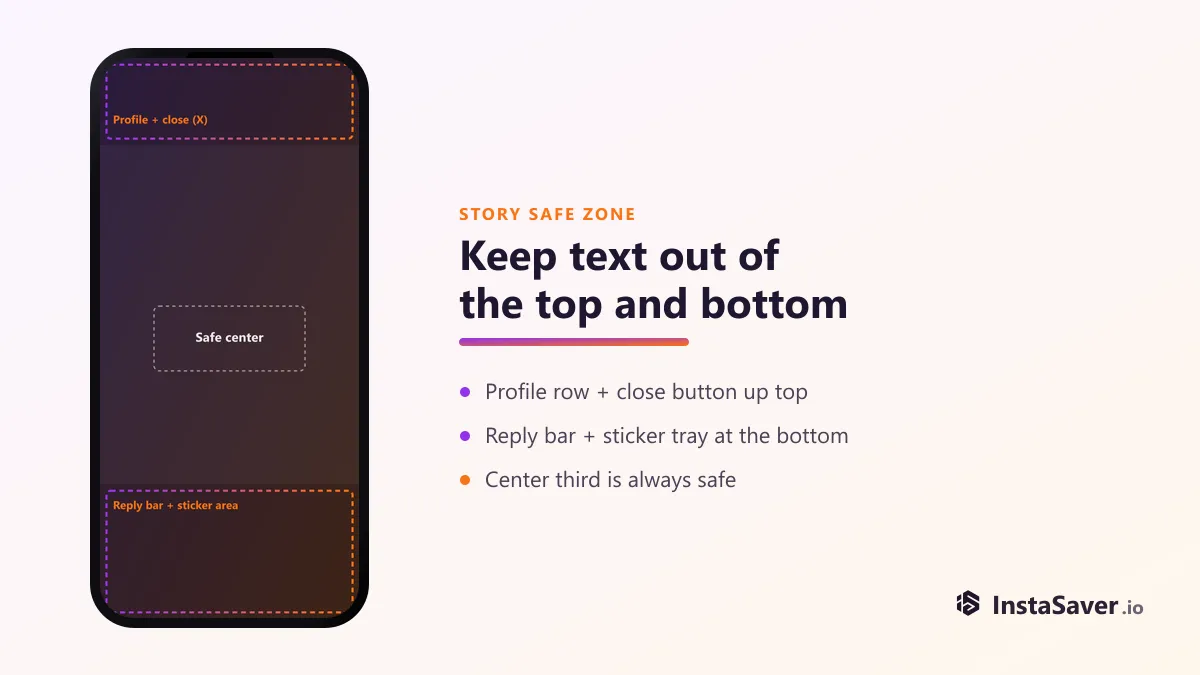
| Zone | Approx. area | What covers it |
|---|---|---|
| Top band | Top ~150–190px | Your profile picture, username, and the close (X) button |
| Bottom band | Bottom ~250–320px | The reply text field, and sticker tray if you're using polls, quizzes, or links |
| Safe center | Middle ~55–60% of the frame | Nothing overlays here — the reliable zone for text and faces |
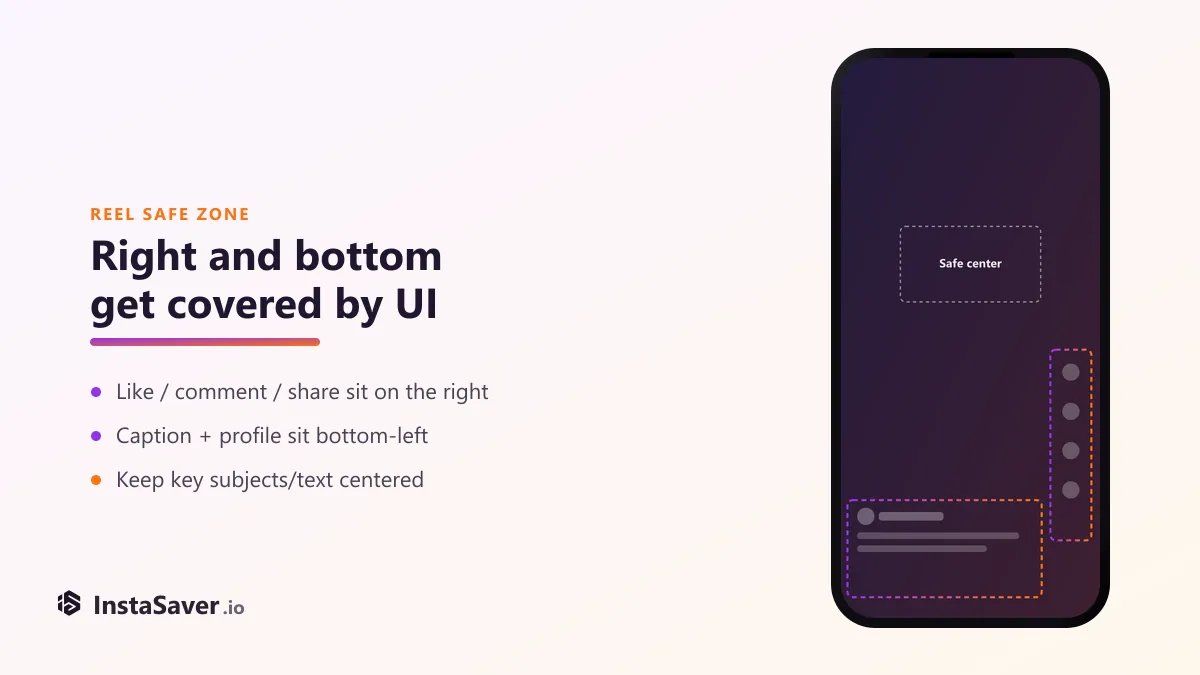
Reels share the 1080×1920 canvas with stories, but the overlay is different: the like, comment, share, and remix buttons run down the right edge, and the caption plus your profile handle sit bottom-left. A subject centered for a story can end up half-hidden behind the action buttons in a Reel.
Instagram accepts three aspect ratios for a regular feed post — portrait, square, and landscape. All three are valid; they just render at different sizes in the feed. Portrait gets the most vertical space, which is why most creators default to it.
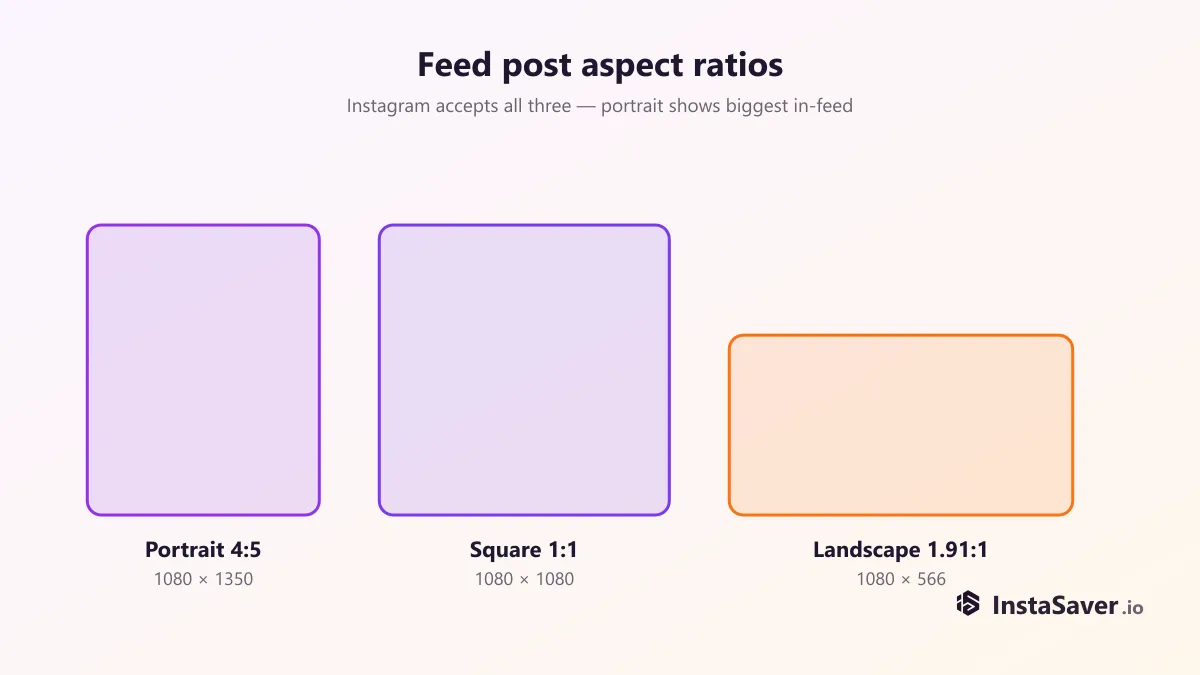
| Format | Ratio | Export size | Notes |
|---|---|---|---|
| Portrait | 4:5 | 1080 × 1350px | Takes the most vertical space in-feed — the usual default |
| Square | 1:1 | 1080 × 1080px | Simple and predictable; crops cleanly to the profile grid |
| Landscape | 1.91:1 | 1080 × 566px | Shows smallest in-feed; mainly useful for wide screenshots or link-style graphics |
| Carousel | 4:5 or 1:1 | Match across all slides | Instagram uses your first slide's ratio for every slide that follows |
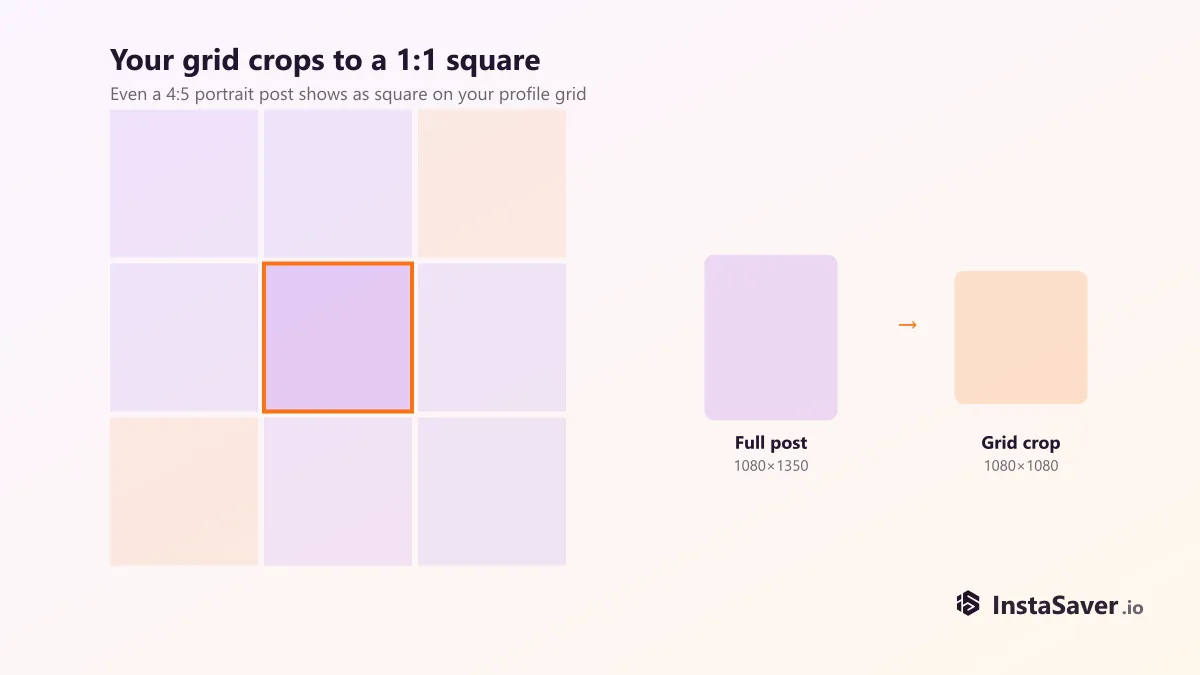
There's a catch that surprises a lot of people: your profile grid always shows posts as a 1:1 square, no matter which ratio you upload. A 4:5 portrait post displays full-size in the feed, but on your grid it's center-cropped down to a square.
The profile picture uploads as a square but displays circle-cropped everywhere on Instagram — the grid, comments, Stories tray, DMs. Export it as a 320×320px (or larger, same ratio) square with your logo or face centered, and leave a margin — anything tight to the corners gets clipped by the circle mask.
Square upload, circle-cropped on display. Keep the subject centered with margin on all sides.
Instagram compresses on upload regardless — a smaller, well-exported file often looks sharper than a huge one.
Plenty of headroom for a 90-second Reel at full quality; length is the real constraint, not file size.
File-size limits are rarely the thing that trips people up — it's almost always dimensions and safe zones. Get the canvas size and safe zones right first; that alone fixes most of the cropped or covered-up posts people run into. (If posts come out *soft* rather than cropped, that's a separate issue — see why Instagram images look blurry and how to fix it.)
Before you post, glance at three things: does the ratio match what you exported (Instagram will silently crop a mismatched ratio), is any text or face sitting inside a UI band, and if it's a carousel, does every slide share the first slide's ratio. That's the whole checklist — the rest is just picking the size from the tables above.
One more thing worth knowing if you're studying how other accounts frame their Stories or Reels: an anonymous story viewer lets you look at a public account's story layout without opening it from your own account — useful for checking how a format reads before you copy the idea, without adding yourself to anyone's viewer list. Public content only, same as everywhere else on this site. If you're curious what that viewer list actually shows (and the order myth around it), see what the Instagram story viewer list really shows.
Insta Saver's free tools let you view and save public Instagram content — stories, Reels, photos, and profiles — right in your browser, so you can check how a format is framed before you build your own.
We build free Instagram tools — an anonymous story viewer plus photo, video, reels, and profile downloaders — and write practical guides on saving, viewing, and understanding Instagram content, without the hype.
More about usInstagram has its own search engine, and since July 2025 Google indexes a slice of public posts too. Here's where your keywords actually matter.
Instagram capped hashtags at five and quietly killed hashtag-follow. Here is what that actually means, and what to use instead for the reach hashtags used to promise.