
Instagram SEO: How to Get Found in Search (Not Just the Feed)
Instagram has its own search engine, and since July 2025 Google indexes a slice of public posts too. Here's where your keywords actually matter.
 Insta Saver TeamJuly 15, 20267 min read
Your photo looks crisp on your phone, then Instagram serves it back soft and washed out. You can't turn compression off — but you can hand Instagram a file it barely has to touch.
 Insta Saver TeamJuly 15, 20267 min read
You take a sharp photo, edit it until it looks great on your screen, post it — and Instagram hands it back soft, muddy, and slightly washed out. It's one of the most frustrating things about the platform, and it feels like there's nothing you can do about it.
There isn't a magic setting that stops Instagram from compressing your images — it compresses everything, always. But most of the blur people blame on Instagram is actually baked in *before* the upload, by the file you feed it. Get the export right and the same compression that ruined your last post barely touches the next one.
Every image you upload gets re-encoded on Instagram's servers so it loads fast for the next person scrolling. That re-encode is the compression, and you can't opt out of it. What you *can* control is how much work it has to do. Hand Instagram a file that's already close to what it wants, and the re-encode is gentle. Hand it something far off — too big, wrong format, wrong colors — and it downscales and recompresses hard, all in one lossy pass. That's the mush.
So the whole game is this: stop trying to beat the compression, and start giving it a file it barely has to change. Three numbers do most of that work.
Instagram displays feed photos at 1080px wide. Export to exactly that and it has almost nothing to resize — the single biggest fix.
Photos exported in Display P3 or Adobe RGB come back flat and desaturated. Convert to sRGB before you upload.
Instagram re-encodes everything to JPEG anyway. Give it a clean JPEG so it isn't converting your file twice.
This is the fix that surprises people. It feels backwards — you'd think uploading the biggest, highest-resolution file gives Instagram the most to work with. It doesn't. A 4000px-wide export forces Instagram to shrink the image *and* recompress it in the same step, and that combination is exactly what softens edges and smears fine detail.
Instead, resize the long dimension to 1080px yourself, in an app that does a clean downscale, before you upload. For the common feed ratios that means 1080×1350 (portrait 4:5), 1080×1080 (square), or 1080×1920 for a story. Now Instagram receives a file that's already the display size, so its only job is a light compression pass — and light compression is barely visible.
Width does the heavy lifting, but a few more settings decide whether your file arrives clean. This is the whole cheat sheet — set these once in your editor's export preset and you're done thinking about it.
| Setting | Use this | Why it matters |
|---|---|---|
| Width | 1080px (feed) · 1080×1920 (story/Reel) | Matches how Instagram displays it, so there's no forced downscale on upload |
| Aspect ratio | 4:5, 1:1, or 9:16 | An off-ratio image triggers an extra crop and recompress — pick a supported ratio first |
| Format | JPEG | Instagram converts everything to JPEG anyway; give it one so it doesn't re-convert |
| Color space | sRGB | Display P3 / Adobe RGB come out dull and shifted — sRGB is what Instagram assumes |
| File size | ~200 KB – 1 MB | Bigger files get compressed harder, not kept sharper; this range holds detail without bloat |
| Quality slider | ~85–90% | High enough to look clean, low enough that Instagram's pass adds little on top |
The color-space one catches a lot of people. Modern phones and cameras shoot in a wide gamut (Display P3 on iPhones, Adobe RGB on many cameras), which looks vivid in your editor. Instagram treats untagged files as sRGB, so those wide-gamut colors get misread and your reds go orange, your blues go gray. Converting to sRGB on export keeps what you actually saw.
Even with a perfect export, quality can drain away between your file and the upload — usually on the phone, usually without you noticing. These are the leaks worth knowing, because each one is a one-time fix.
| Screenshotting to repost | You recapture an already-compressed image at screen resolution — compression on top of compression | Save or export the original file instead of screenshotting it |
| Sending through a chat app first | WhatsApp, Messenger, and similar apps compress images before they ever reach Instagram | Move files by AirDrop, cloud link, or email-as-attachment, not through chat |
| iPhone HEIC files | HEIC gets converted on upload, sometimes badly | Export or convert to JPEG before posting |
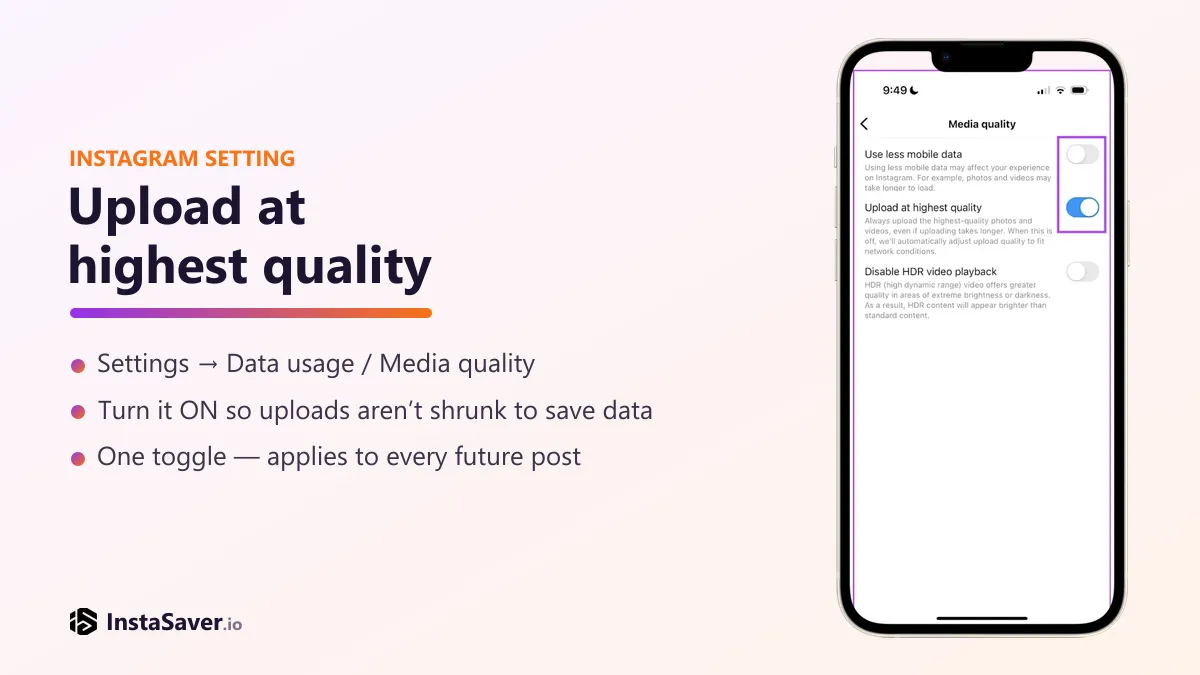
| Upload-quality setting off | Instagram uploads a lower-quality version to save data | Turn on “Upload at highest quality” in Settings (as of 2026) |
| Uploading a huge export | Instagram downscales and recompresses in a single hard pass | Pre-resize to 1080px wide yourself first |
That upload-quality toggle is worth finding once. On the app it lives under Settings → Data usage / Media quality, with an option called something like *Upload at highest quality* (the exact wording shifts between versions, but it's there as of 2026). Off, Instagram trades quality for a smaller upload. On, it sends the best version of the file you gave it.
Put it together and it's a short, repeatable routine. Do it once as an export preset and it costs you a few seconds per post from then on.
Downscale the long edge to 1080px in your editor (1080×1350 for portrait, 1080×1080 for square, 1080×1920 for a story). Don't let Instagram do the resizing.
Set the color space to sRGB on export so your colors don't shift. This is a one-click setting in most editors and phone photo apps.
JPEG, quality around 85–90, aiming for roughly 200 KB–1 MB. Clean and light — nothing for Instagram to fight with.
Turn on “Upload at highest quality,” and post the exported file directly — no screenshots, no routing it through a chat app first.
Want to check whether it worked? After the post is live, you can pull the version Instagram actually serves for any public photo — including your own — with the Instagram photo downloader, and compare it to your export side by side. It's the honest way to see exactly what the compression did, rather than guessing from the small in-app preview.
One honest caveat: Instagram will always apply some compression, and there's a ceiling on how sharp a feed image can look no matter what you do. If you're pixel-peeping at 200% zoom, you'll still find softness. That's the platform, not your file — and no export setting removes it.
The goal isn't a perfect, untouched image; it's an image that reads as crisp and correctly colored at the size people actually view it. The steps above get you there. Past that, chasing the last 2% is effort better spent on the photo itself — and on the two other things that decide whether a post lands.
The first is framing it at the right size in the first place: our Instagram dimensions and safe-zones cheat sheet covers the exact pixels and where the app's own UI covers your content, so nothing gets cropped or hidden. The second is timing — once the image looks right, when you post it affects how many people ever see it.
Insta Saver's free photo viewer lets you open and save the version Instagram actually serves for any public photo — including your own posts — right in your browser, so you can compare it to your export and see the real difference.
We build free Instagram tools — an anonymous story viewer plus photo, video, reels, and profile downloaders — and write practical guides on saving, viewing, and understanding Instagram content, without the hype.
More about usInstagram has its own search engine, and since July 2025 Google indexes a slice of public posts too. Here's where your keywords actually matter.
Instagram capped hashtags at five and quietly killed hashtag-follow. Here is what that actually means, and what to use instead for the reach hashtags used to promise.